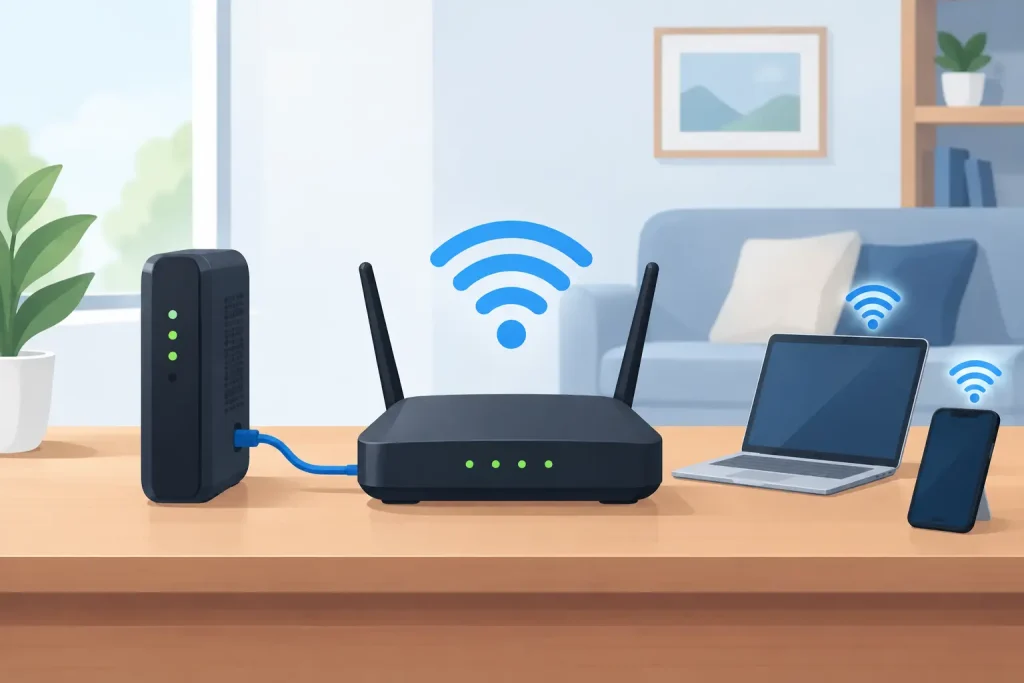
The router supplied with your internet plan is not always the best fit for your home. Maybe its Wi-Fi coverage falls short in the back bedroom, your video calls drop out, or you already own a better mesh system. So, can I use my own router? In many Australian homes, yes – but the right answer depends on your connection type, the equipment at your address and any services connected to it.
Using your own router can give you better coverage, more control and features that suit the way your household uses the internet. It can also create avoidable headaches if the device is incompatible or not configured correctly. Here is the straight answer before you unplug anything.
Can I use my own router on an NBN connection?
Usually, yes. Most NBN services use a network connection device at your premises, and your router connects to that device to share internet around the home. The detail that matters is how the internet reaches your property.
With FTTP, HFC and most fixed wireless services, there is typically an NBN connection box with an Ethernet port. Your router plugs into that port using the blue or labelled WAN/Internet port on the router. In this setup, nearly any modern router with an Ethernet WAN port can be suitable, provided it supports your provider’s connection settings.
FTTC services also generally allow you to use your own router. The NBN connection device plugs into the telephone wall socket, then your router connects to it by Ethernet. Do not remove or replace the NBN connection device – it is part of the network setup, not simply an old modem.
FTTN and FTTB are different. These connections run over part of the existing copper phone line, so you need a router with a built-in VDSL2 modem. A standard Ethernet-only router will not connect directly to the wall socket. You may be able to use it alongside a separate compatible modem, but that adds another device and another potential point of failure.
Opticomm, cable and other private network connections can vary by building. Many use an Ethernet hand-off much like FTTP, while others have their own network terminal or modem requirements. Checking your address and connection type first saves a lot of guesswork.
Router, modem or mesh system: what are you replacing?
These terms are often used interchangeably, but they do different jobs. A modem connects your home to certain physical network types, particularly FTTN and FTTB. A router creates your home network and directs traffic between your devices and the internet. Wi-Fi is the wireless signal your router broadcasts.
A mesh system is still a router setup, usually with extra satellite units placed around the home to improve coverage. It can be a strong option for larger houses, double-storey homes or places with thick brick walls. It will not increase the speed arriving at your property, but it can make that speed more usable where you actually need it.
If your supplied device is a combined modem-router and you are on FTTN or FTTB, replacing it with a basic standalone router will not work on its own. If you are on FTTP, HFC or FTTC, a standalone router or mesh system is often exactly what you need.
What to check before using your own router
Start with the connection type, not the router box. Your provider can confirm the access technology at your address and whether your service needs any particular settings. This is especially useful in apartments, new developments and properties connected through Opticomm or another private network.
Then check that the router supports the basics your service needs. For an Ethernet-based connection, look for a WAN port that supports at least gigabit speeds. For FTTN or FTTB, look for VDSL2 support. Older ADSL-only modems are not suitable for these NBN connections.
You may also need your provider’s WAN settings. Some services connect automatically using IPoE or DHCP. Others require PPPoE login details or a VLAN setting. These details are normally entered through the router’s setup page or app. Do not guess at settings – one incorrect field can leave you with no connection even when all the cables are right.
If you have a home phone service delivered through your current modem-router, check this carefully before changing equipment. The phone may rely on the supplied device’s voice settings, which are not always available on a retail router. The same goes for any provider-managed security, parental controls or backup mobile connection features.
How to set up your own router without the fuss
Before you begin, take a photo of the existing setup. It gives you a simple reference if you need to put the supplied unit back later. Write down the Wi-Fi network name and password if your household devices rely on them.
Disconnect the old router, but leave any NBN connection box, FTTC connection device or network terminal in place. Connect an Ethernet cable from that device to the WAN or Internet port on your new router. For FTTN or FTTB, connect the compatible modem-router to the correct telephone socket using the appropriate cable.
Switch on the network device first if it was powered down, then turn on the router and wait a few minutes. Open the router’s app or setup page and select the connection type provided by your internet provider. Enter any required credentials, save the settings and allow the router to restart.
Once you are online, update the router firmware before you settle in. Firmware updates can improve security, stability and compatibility. Set a strong administrator password too. This is separate from your Wi-Fi password and is often overlooked.
You can keep your old Wi-Fi name and password if you want phones, TVs, consoles and smart devices to reconnect without setting each one up again. Just make sure the new router uses an appropriate security setting, ideally WPA2 or WPA3. If an older device refuses to reconnect, create a separate guest or IoT network where your router supports it rather than weakening security across the whole home.
Better Wi-Fi is about placement as well as hardware
A premium router tucked inside a cupboard will still struggle. Place the main unit in an open, central area where practical, away from thick walls, metal cabinets, aquariums and microwave ovens. Keep it off the floor and give it room to ventilate.
For a mesh system, place the first satellite halfway between the main router and the weak-signal area. Do not put it in the dead zone itself. Each mesh point needs a decent signal to pass a decent signal on. If your home allows it, Ethernet cabling between mesh units delivers the most reliable result for work calls, gaming and 4K streaming.
Also separate Wi-Fi problems from internet connection problems. If every device drops out, including devices connected by Ethernet, the issue may be the service or network connection. If only one room has trouble while the rest of the home is fine, it is more likely Wi-Fi coverage or interference.
The trade-off: support can be simpler with supplied equipment
There is no trick here. A provider-supplied router can make troubleshooting faster because support teams know the device, its settings and its indicators. When you bring your own router, the provider can still help check the service to your property, but may ask you to reconnect the supplied device to isolate whether the fault is on the network or inside your home.
That is not a runaround. It is the quickest way to identify the cause and avoid paying for hardware you do not need. Keep the supplied router somewhere safe, along with its power pack and cables, even if you prefer your own equipment.
At City Cable, the practical approach is to check the network at your address first, then make sure you know what equipment and settings your connection requires. The best router is the one that works properly with your service and covers the places where your household actually gets online.
If your current Wi-Fi is letting you down, do not assume a more expensive plan is the answer. Confirm the connection type, choose compatible hardware, place it well and keep the original equipment handy. A few checks upfront can turn a frustrating home network into one that simply gets on with the job.