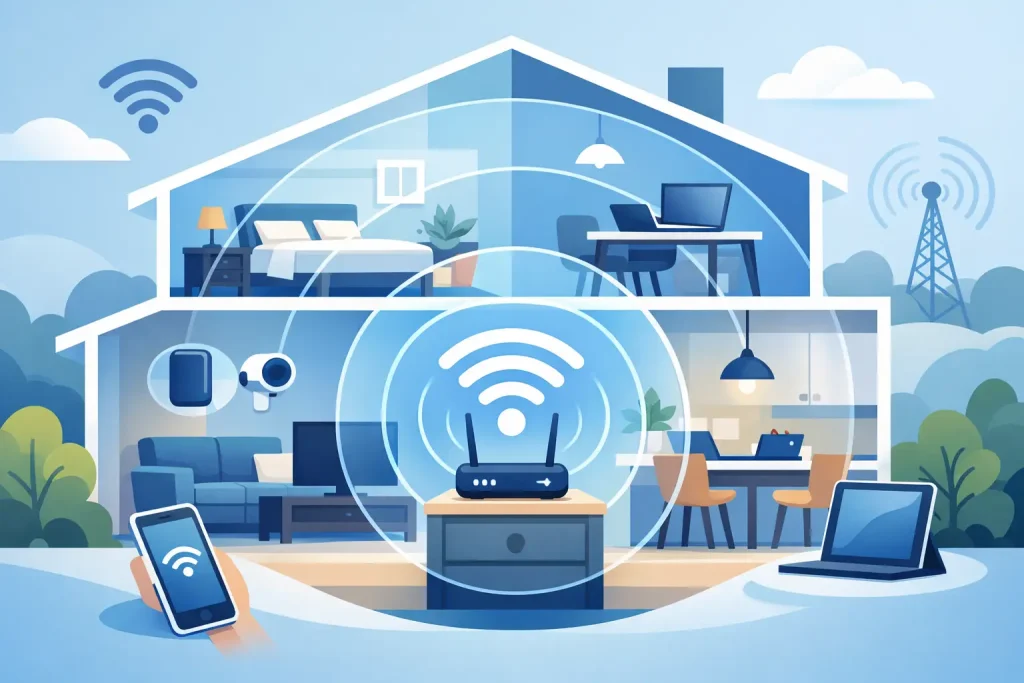
A video call freezing just as you start speaking, a movie dropping to blurry quality, or a game lagging at the worst possible moment is frustrating. If you are wondering how to improve WiFi stability, the answer is rarely one magic setting. It usually comes down to where your router sits, what is competing for its signal, and whether your home setup suits how you use the internet.
Before replacing equipment or changing plans, work through the practical checks below. They solve a surprising number of home WiFi problems without adding cost or complexity.
Start by working out whether it is WiFi or your internet service
WiFi is the wireless connection between your device and router. Your internet service is the connection from your home to the wider internet. They are related, but they are not the same thing.
A quick way to tell is to connect a laptop or desktop directly to the router with an Ethernet cable, then test the connection when WiFi is playing up. If the wired connection is steady but wireless devices are slow or dropping out, the issue is inside your home WiFi network. If both connections struggle, the problem may be an outage, a fault, network congestion or a plan that does not have enough capacity for your household.
Also consider timing. If the connection is unreliable only in one room, poor WiFi coverage is the likely culprit. If every device slows down at busy times, it may be worth checking the service itself before moving furniture around.
Put your router where the signal can actually work
Router placement has a bigger impact than most people expect. WiFi signals weaken as they travel through walls, floors, cabinetry and large appliances. Concrete, brick, metal and mirrored surfaces are especially good at getting in the way.
Place your router in an open, central part of the home where practical, ideally raised on a shelf or table. Keep it clear of cupboards, entertainment units and the floor. If the connection box is tucked away in a garage or at one end of the house, your router may be doing its best from the worst possible location.
Avoid placing it beside cordless phone bases, baby monitors, microwave ovens, Bluetooth-heavy equipment or large speakers. These can interfere with wireless signals, particularly on the 2.4 GHz band.
You may not be able to move the main connection point, especially in a rental or apartment. In that case, a longer Ethernet cable can let you position the router more sensibly. Just keep cables tidy and avoid creating a trip hazard.
Use the right WiFi band for the job
Most modern routers offer both 2.4 GHz and 5 GHz WiFi bands. Some newer models also support 6 GHz. Each has a different strength.
The 2.4 GHz band reaches further and travels through walls more effectively, but it is slower and more crowded. It is often a good choice for smart home devices, cameras and devices located far from the router. The 5 GHz band generally delivers faster speeds and has less interference, but its range is shorter. It suits streaming, video calls and gaming when you are in the same room or nearby.
If your router combines the bands under one network name, it may automatically steer devices to the best option. That is convenient when it works well. If a device keeps choosing a weak connection, separating the network names can give you more control. For example, you might connect the TV and work laptop to the 5 GHz network, while leaving smart lights and appliances on 2.4 GHz.
Do not assume the fastest band is always the most stable. A strong 2.4 GHz connection can be more reliable than a weak 5 GHz signal through several walls.
Reduce the load on a crowded home network
A busy household can have dozens of connected devices, even if only a few people are home. TVs, tablets, mobiles, consoles, security cameras, smart speakers and appliances all use a share of the network.
Start by checking what is connected to your router. Remove old devices you no longer use and change the WiFi password if you see anything unfamiliar. A secure password matters for more than privacy – unknown devices can consume bandwidth and make the network harder to manage.
Then look for high-demand activity. Cloud backups, software updates, large downloads and 4K streaming can all compete with video calls or online games. Scheduling backups overnight and pausing non-essential downloads during work or study hours can make a noticeable difference.
If your router includes quality of service settings, often called QoS, you can prioritise certain traffic or devices. This is useful for a household where a work call must take priority over a game download. It is not essential for every home, though, and poorly configured QoS settings can create new problems. Keep it simple unless you know exactly what you are changing.
Restart and update your equipment properly
Restarting a router is not a cure-all, but it is a sensible first step when a previously stable connection starts misbehaving. Turn it off, wait around 30 seconds, then switch it back on. This clears temporary glitches and gives it a fresh connection to the network.
Check for router firmware updates as well. Manufacturers release updates to improve security, fix bugs and support newer devices. Many routers install these automatically, but older models may need a manual update through the router settings page.
Your devices matter too. Update the operating system and WiFi drivers on laptops, tablets and mobiles where available. If just one device is unreliable while everything else works, the issue is more likely to be with that device than the router.
Change channels if your neighbours are crowding the airwaves
In apartments, townhouses and closely built suburbs, your device may be able to see a long list of nearby WiFi networks. That means multiple routers can be using the same wireless channels.
Many modern routers select channels automatically, and that is usually fine. But if dropouts are frequent, try changing the channel setting in your router administration page. On 2.4 GHz, channels 1, 6 and 11 are commonly the best starting points because they do not overlap. On 5 GHz, automatic channel selection is often the easier and more effective option.
Make one change at a time and test it for a day or two. Changing several settings at once makes it difficult to know what actually improved the connection.
Extend coverage when the home is too large for one router
No single router can deliver perfect coverage through every bedroom, outdoor area and double-brick wall. If the connection is strong near the router but poor at the other end of the home, you may need extra hardware rather than another round of troubleshooting.
A mesh WiFi system is often the best option for larger homes, multi-storey homes and layouts with dead spots. It uses multiple units to create one WiFi network, so devices can move between coverage points without needing to swap networks manually. Place mesh units where they still receive a good signal from the previous unit, not inside the dead zone itself.
A WiFi extender can be a lower-cost fix for one problem area, but it may reduce speed because it has to receive and retransmit the signal. An Ethernet-connected access point is generally more reliable if you can run a cable to the area that needs coverage. For a home office or gaming setup, a direct Ethernet connection remains the most stable choice of all.
Check whether your internet plan matches your household
Better WiFi cannot create bandwidth your plan does not provide. A household with several people streaming, working from home, gaming and using connected devices at the same time needs more capacity than a single-person home checking emails and watching the occasional show.
Speed is only part of the picture. Upload performance matters for video calls, cloud backups and sending large files. Latency matters for online gaming and real-time calls. If your connection is consistently under pressure, an appropriate plan can improve the experience across the whole home.
At City Cable, the practical starting point is always the same: check what network is available at your address, then choose a service that fits the way your household actually uses the internet. No confusing workarounds, no pretending a router setting will fix an undersized connection.
When it is time to contact your provider
Contact your provider if wired and wireless devices both drop out, the router connection light shows a fault, speeds are consistently poor at all times of day, or you have completed the basic checks without improvement. Note when the issue occurs, which devices are affected and whether a wired connection has the same problem. Those details help support teams identify whether the fault is in your home, the equipment or the network.
A stable connection is built from a few sensible decisions rather than expensive gadgets: place the router well, match the band to the room, keep the network tidy and use equipment that suits the size of your home. Start with the easy fixes, test as you go, and ask for local support when the problem points beyond your front door.