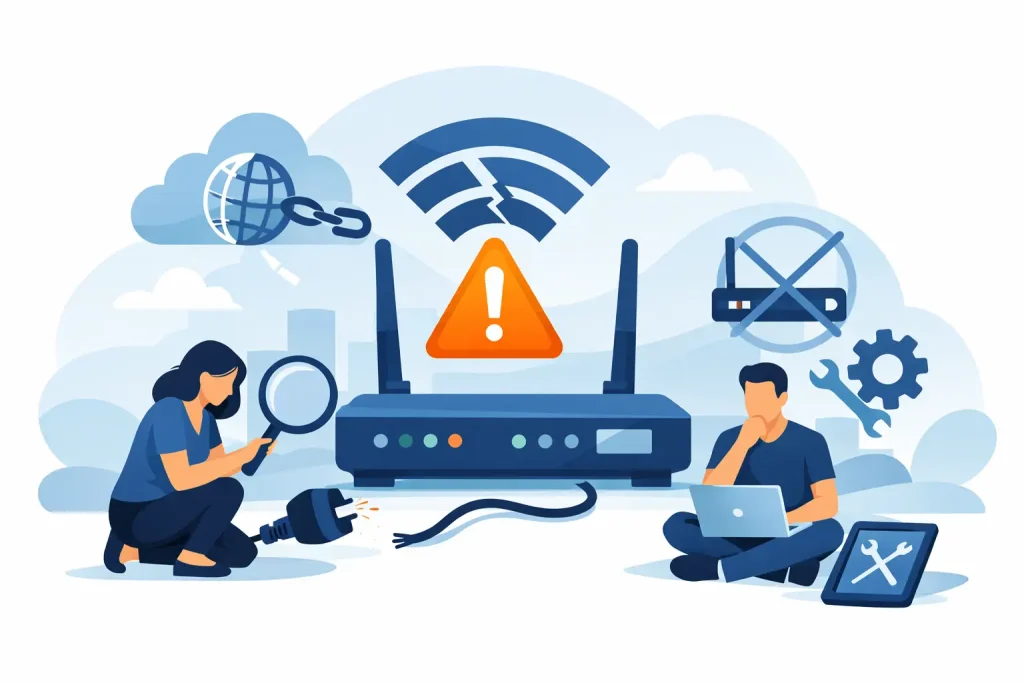
When the video call freezes, the kids’ streaming stops and every device says “no internet”, it is tempting to restart everything at once. A better approach is to work through a few internet outage troubleshooting steps in order. You will identify whether the issue is Wi-Fi, your equipment, the network outside your home or a wider outage – and give support the details they need if you do need to call.
First, work out what has actually stopped working
An internet outage and a Wi-Fi issue can look exactly the same at first. Your mobile, laptop and smart TV may all be connected to your home Wi-Fi network, but that does not guarantee the network has a working connection to the internet.
Start by trying two different devices. If only one device is offline, the problem is likely with that device rather than your service. Restart it, forget and reconnect to the Wi-Fi network if needed, and check that aeroplane mode or a VPN is not interfering.
If every device is affected, look at your router. Can devices still see and join the Wi-Fi network? If they can, but websites and apps will not load, your Wi-Fi is probably working and the internet connection is the likely problem. If the Wi-Fi network itself has disappeared, focus first on the router’s power and Wi-Fi settings.
For the clearest test, connect a computer to the router with an Ethernet cable if you have one. A working wired connection while Wi-Fi fails points to a local wireless issue. No connection on either wired or wireless devices suggests the fault is further upstream.
Check for the simple causes before resetting anything
Before changing settings, check whether there has been a power interruption. A tripped safety switch, a switched-off power board or a loose plug can take your router offline. Confirm that the power point is working by testing another appliance, then make sure the router and any network connection box are switched on.
Many Australian homes have two pieces of equipment: a router and a separate NBN connection box, often called an NTD. Cable, Opticomm and Lynham services can also use a network device installed at the property. Both devices need power and a secure connection between them.
Check the cables without pulling them out unnecessarily. Look for a loose Ethernet lead between the router and connection box, a damaged cable, or a cable moved during cleaning or furniture changes. If you have recently changed routers, confirm the internet cable is in the correct WAN or Internet port, not one of the numbered LAN ports.
Avoid a factory reset at this stage. It can erase your network name, password and connection settings, turning a short outage into a longer setup job. A normal restart is usually enough for an initial test.
Internet outage troubleshooting steps in the right order
A proper restart clears many temporary connection faults, but the order matters. Turning the router back on before the network device has reconnected can leave it searching for a service that is not ready.
- Turn off your router, then turn off the NBN connection box or other network device if you have one.
- Wait at least 30 seconds. This gives the equipment time to fully power down.
- Turn the connection box back on first and wait for its status lights to settle. This may take several minutes.
- Turn the router back on and allow another few minutes for it to reconnect.
- Test a website on one device, then test a second device to confirm the result.
Status lights provide useful clues, although labels differ between equipment. A solid power light is expected. A red, flashing or unlit connection, optical or online light can point to a line or network issue. On fibre services, do not disconnect the thin fibre cable from the wall or connection box. It is delicate, and a loose fibre connection is best handled by a technician.
If lights appear normal but the connection is still down, restart only once more after checking cables. Repeated restarts rarely fix a wider outage and can make it harder to see when the service has genuinely recovered.
Rule out a local Wi-Fi problem
A slow or unreliable connection is not always an outage. Wi-Fi signals are affected by distance, walls, appliances and the number of devices using the network at the same time. This is particularly noticeable in larger homes, apartments with crowded wireless networks and houses where the router is tucked into a cupboard.
Move closer to the router and test again. If the service works well nearby but drops out in bedrooms or at the far end of the house, the internet connection is likely fine. The issue is coverage. Position the router in an open, central spot where practical, away from thick walls, metal cabinets, cordless phone bases and microwaves.
If your router offers both 2.4 GHz and 5 GHz Wi-Fi, the choice involves a trade-off. The 2.4 GHz band travels further through walls but can be busier and slower. The 5 GHz band is usually faster close to the router but has a shorter range. Modern routers may manage this automatically, so do not change settings unless you know which network you are joining.
For homes with regular coverage problems, a mesh Wi-Fi system or additional access point may help. That improves wireless reach, but it will not fix an issue with the external network connection.
Check whether the fault is outside your home
If your equipment has power, the cables are secure and multiple devices cannot get online, the next question is whether a planned or unplanned network outage is affecting your area. Network maintenance can briefly interrupt service, while weather, roadworks, power events or damaged infrastructure can cause unplanned faults.
Use your mobile data to check your provider’s service-status information or contact its support team. If your mobile is also connected to your home Wi-Fi, turn Wi-Fi off first or you may not be able to load anything. Neighbours can also offer a useful comparison, especially in apartments or townhouses using the same building network. Their service being down does not prove the exact same cause, but it suggests the issue is not limited to your router.
Do not assume every outage is a provider-wide event. A fault can affect one address, one street, a building’s communications room or a local section of the network. Your provider may need to run tests from its side before it can tell the difference.
What to have ready when you contact support
Good support should not send you in circles. You can help move things along by having a few facts ready: when the issue started, whether all devices are affected, what the connection-box lights are doing, and whether you have completed a standard restart.
Also mention anything that changed shortly before the outage. That could be a storm, a blackout, recent construction nearby, a new router, renovations or a cable that was accidentally bumped. If the connection works intermittently, note the times it drops out and whether it happens during heavy rain, peak household use or at random.
Support may ask you to perform a test while they check the line remotely. That is normal. If a network fault is confirmed, they can explain the next step, whether that is monitoring, a network investigation or a technician appointment. Clear information beats guesswork, and it avoids unnecessary appointments where the issue is simply a disconnected cable or a Wi-Fi dead spot.
When not to troubleshoot further
Stop and contact your provider if you see damaged external cabling, a loose fibre lead, water near equipment, burning smells or a connection box that will not power on. Do not attempt repairs to street-side equipment, building communications rooms or fixed cabling. Apart from being unsafe, it can create a bigger fault and delay restoration.
It is also worth calling if the connection repeatedly fails after the same basic checks. An intermittent problem may need line testing over time, particularly if it affects work calls, online study or security devices. A single restart can fix a temporary glitch. A pattern deserves a proper investigation.
A reliable home connection should not require a degree in telecommunications to keep it working. Start with the simple checks, keep changes controlled, and ask for local help when the fault is beyond your front door. City Cable’s Australian-based support team can then focus on fixing the right problem, not making you repeat the same steps.