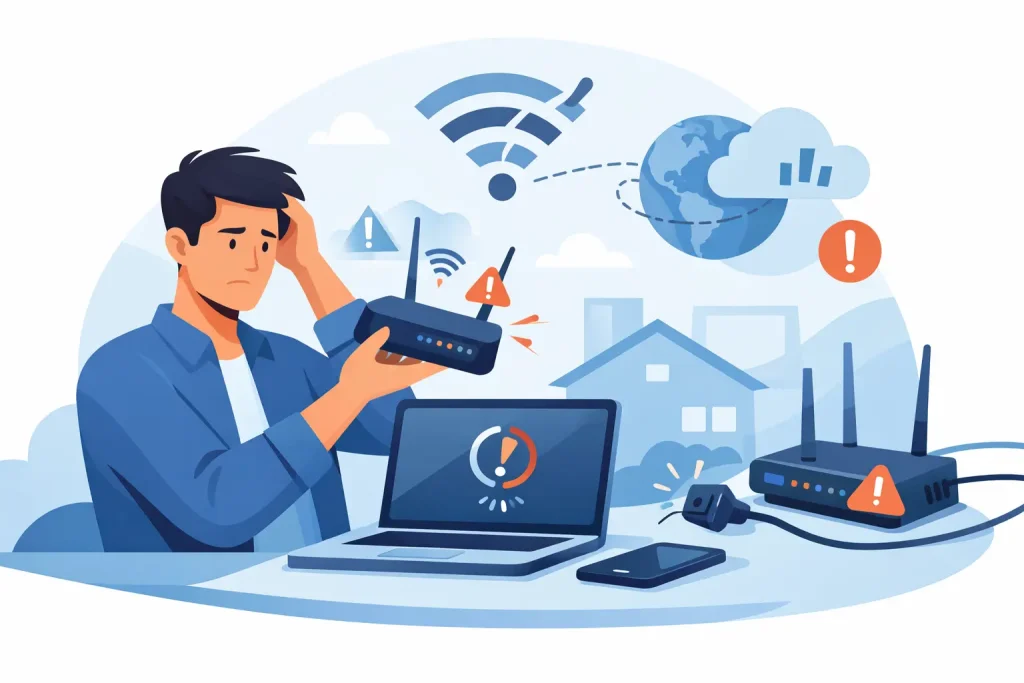
A video freezes just as the meeting starts. Your game disconnects. The smart TV suddenly claims it has no internet. If you are asking, why is my internet dropping?, the frustrating answer is that the fault may not be with the internet service itself. It could be your Wi-Fi, modem, device, cabling or a network issue outside your home.
The good news is you do not need to guess – or spend an hour repeating the same restart. A few simple checks can narrow down where the problem is and what needs to happen next.
First, work out what is actually dropping
There is a big difference between Wi-Fi dropping and your whole internet connection dropping. They can feel identical from the lounge room, but the fix is different.
If one device loses connection while other devices are still streaming or browsing normally, the issue is probably with that device. It might be too far from the modem, need a software update or have a saved network setting that is causing trouble.
If every device goes offline at the same time, look at your modem or router. Check its status lights when the drop-out happens. A Wi-Fi light may stay on even when there is no internet coming into the house, so pay attention to the internet, WAN, DSL or connection light too. The label depends on your equipment and connection type.
A wired test is the quickest way to separate a Wi-Fi issue from a service issue. If possible, plug a laptop directly into your modem or router with an Ethernet cable. If the wired connection works while Wi-Fi keeps cutting out, your service is likely fine and your home Wi-Fi needs attention.
Why is my internet dropping on Wi-Fi?
Wi-Fi is radio signal, not magic. Walls, distance, competing networks and even where the modem sits can affect it. This is especially common in apartments, townhouses and busy suburban areas where dozens of nearby networks compete for the same wireless space.
Your modem is in the wrong spot
A modem tucked in a cupboard, behind a TV, on the floor or beside a large metal appliance will struggle to cover the home properly. Put it in an open, central position where practical. Keep it away from thick brick walls, fish tanks, cordless phone bases and microwaves.
You may not be able to make every room perfect, particularly in a long house or a double-storey home. But moving the modem a few metres can make a noticeable difference. If the weak spot is a study, bedroom or granny flat far from the modem, a mesh Wi-Fi system or access point may be a better answer than repeatedly upgrading your internet plan.
The Wi-Fi band is congested
Most modern routers offer 2.4 GHz and 5 GHz Wi-Fi bands. The 2.4 GHz band reaches further and handles walls better, but it is often crowded. The 5 GHz band is generally faster over shorter distances, though its range is lower.
For a device close to the router, 5 GHz is usually the better choice. For a device at the far end of the house, 2.4 GHz may hold a steadier connection. Some routers manage this automatically, while others show separate network names. It depends on the router and the layout of your home.
Too many devices are competing
A busy home can have phones, laptops, tablets, TVs, cameras, doorbells, speakers and gaming consoles all connected at once. That does not automatically cause drop-outs, but an older or entry-level router can struggle when several devices are streaming, gaming or backing up files.
Try disconnecting devices you are not using and see whether stability improves. If your router is several years old, replacing it may solve problems that a faster plan cannot. Your plan controls the connection arriving at your home. Your router controls how effectively that connection is shared around it.
Check the simple physical causes
It sounds basic, but loose or damaged cables cause plenty of avoidable trouble. Check that the power cable and network cables are firmly connected, without crushing, sharp bends or obvious damage. If you have NBN equipment such as an NBN connection box, make sure it has power and its relevant status lights look normal.
Avoid switching off equipment at the wall during a drop-out unless you are deliberately restarting it. Repeated power cycling can make diagnosis harder, and on some connection types, frequent reconnects may be interpreted as an unstable line.
If you do restart your equipment, do it once and properly. Turn off the modem and any separate connection box, wait about 30 seconds, then power the connection box back on first. Wait for it to settle before switching on the modem. Give it several minutes to reconnect before deciding it has not worked.
Look for a pattern before reporting a fault
The timing of a drop-out tells a useful story. Does it happen only at night? When it rains? During a video call? When someone turns on the microwave? Or only on one laptop?
Rain-related issues can point to damage or moisture affecting external infrastructure, particularly where overhead cabling is involved. Drop-outs at peak evening times could be related to local demand, although they can also expose a weak Wi-Fi setup when everyone in the house is online. A problem that starts when the microwave runs may be interference on 2.4 GHz Wi-Fi, rather than an internet outage.
Keep a short record for a day or two: the date, time, which devices were affected, what the modem lights showed and whether the connection returned by itself. This gives support staff something useful to work with and helps avoid the usual back-and-forth.
Check for an outage or planned work
Sometimes the problem is not inside your home. Network maintenance, local faults, power interruptions and weather damage can affect services in an area. If your mobile data still works, check your provider’s service status information before changing modem settings or factory resetting anything.
A factory reset should be a last resort. It removes your Wi-Fi name, password and other settings. It can be helpful when a router configuration is genuinely corrupted, but it will not fix an area outage, damaged cable or a weak signal in the back bedroom.
When your plan may be part of the issue
A slow connection and a dropping connection are not always the same thing. If pages load slowly when everyone is online but devices remain connected, you may need more speed for your household’s usage. A family with multiple 4K streams, online gaming, work video calls and cloud backups will have different needs from a couple who browse and watch one show at a time.
However, upgrading your plan will not fix a Wi-Fi dead zone or a modem that keeps losing sync. Start by confirming whether the wired service also drops. That one test can save you money and frustration.
What to have ready when you contact support
If the problem continues after checking Wi-Fi placement, cables and a single restart, contact your provider. Explain whether every device is affected, whether a wired test also failed, the times the issue occurred and what the modem lights showed. Include any recent changes, such as a new router, renovation work, moving furniture or a power outage.
A good provider should tell you plainly what they can see, what they need you to test and whether the fault appears to be inside your home or on the network. That is the standard City Cable aims for: practical local support without sending you in circles.
You should not have to put up with a connection that disappears whenever life gets busy. Start with the wired test, make one change at a time, and use the pattern of the fault to get to the real cause faster.